

A Complete Guide to Using Restoro for Windows PC Troubleshooting
Restoro is no longer a product I can recommend downloading. Recent 2026 reporting indicates that its official website is no longer operating as a normal product-download and support site. The software’s history also includes a significant U.S. Federal Trade Commission (FTC) case involving allegations of misleading computer warnings and repair sales. This guide explains what Restoro was designed to do, how its troubleshooting process was presented, what users should know about its risks, and which Windows tools are safer choices today.
Table of Contents
Understanding Restoro and Its Original Purpose
Restoro was marketed as a Windows PC repair and optimization program intended to help users identify problems affecting their computers. Its advertised purpose was to scan a Windows system, report possible errors, and offer repair options for issues involving damaged system files, stability, security, and unwanted files. The idea behind this type of software is appealing: instead of searching for individual solutions to every computer problem, users are offered a single interface that claims to examine several parts of the operating system. For people who are not comfortable with technical troubleshooting, an automated scan can sound like an easy way to understand why a computer is freezing, running slowly, or displaying repeated errors.
However, there is an important difference between what a program advertises and what it can reliably accomplish. A scan may identify entries or warnings without proving that they are responsible for a noticeable problem. Windows also records routine system events that do not necessarily indicate a fault. Restoro’s history makes this distinction especially important because the FTC later challenged the company’s marketing and sales practices. Anyone researching the software today should therefore approach old tutorials and download recommendations with caution rather than treating them as current advice.
The Windows Problems It Claimed to Address
Restoro promoted itself as a tool for several common Windows troubleshooting situations. These included system instability, damaged or missing Windows files, application crashes, performance complaints, registry-related warnings, and possible malware problems. Such issues can be frustrating because they often appear similar to one another. For example, a computer that takes a long time to start could be affected by too many startup applications, insufficient storage, a failing drive, unwanted software, or an operating-system problem. A general repair program may present itself as a convenient way to investigate these possibilities in one place.
The difficulty is that symptoms do not always reveal the cause. A slow computer does not automatically have corrupted system files, and a program crash does not necessarily mean the Windows registry needs repair. A reliable troubleshooting process begins by identifying the actual symptom, checking when it occurs, and using appropriate diagnostic tools. Restoro’s marketing suggested that its scans could identify a broad range of problems, but users should not assume that every item reported by a scan represents a serious threat or requires paid intervention. The FTC’s complaint described concerns about scans that allegedly reported large numbers of problems on computers that investigators had tested and found to be functioning without the claimed issues.
How Its Scanning and Repair Process Worked
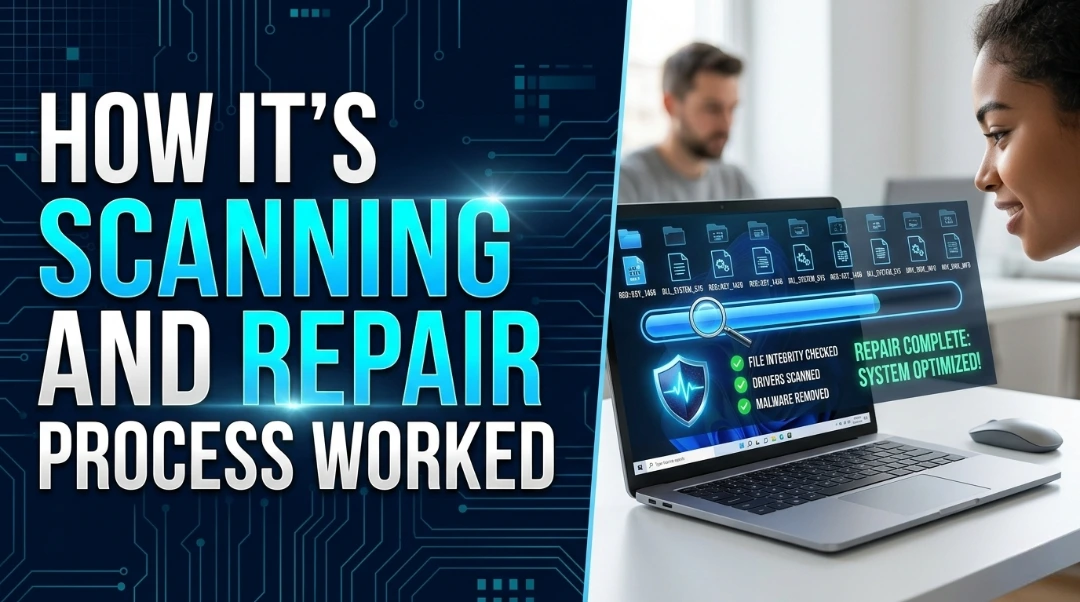
Restoro‘s former workflow followed a familiar pattern used by many PC maintenance applications. A user installed the software, opened its dashboard, and started a computer scan. The program then displayed categories of findings and presented repair options, with paid activation required for certain repair functions. Older software reviews describe an interface that grouped results into areas such as system stability, security, and an overall summary. This arrangement was intended to make technical information easier for everyday users to understand.
The important point is that a scan report should be treated as diagnostic information, not as proof that a computer is damaged. Users should ask what a reported issue means, whether it is connected to the problem they are experiencing, and whether Windows already provides a suitable repair method. A trustworthy troubleshooting process should explain findings clearly and allow users to make informed choices without pressure. Because Restoro is no longer a supported product that can be confidently recommended, the former workflow is best understood as background information rather than instructions to obtain or activate the software today.
Restoro's Main Features and Functions
Restoro‘s historical product descriptions presented it as a combination of Windows repair, system scanning, and PC optimization features. The advertised functions included checking for damaged operating-system files, identifying stability issues, examining registry entries, and detecting possible security threats. Some product descriptions also referred to replacing damaged Windows files with known-good versions. These capabilities were promoted as ways to address several computer problems without requiring users to understand every technical detail behind them.
When evaluating any software in this category, it helps to separate legitimate maintenance functions from broad performance promises. Windows system files can become corrupted, malware can compromise a computer, and unnecessary startup applications can slow down boot times. Those are real troubleshooting concerns. But a tool’s ability to scan for a category of problems does not prove that it can fix every cause of that problem, and no general-purpose optimizer can guarantee that an older computer will suddenly perform like a new one. Users should prioritize specific, verifiable repairs over dramatic claims about making a PC faster or eliminating every error.
System File and Stability Checks
Windows depends on many system files and components to operate correctly. If important files become corrupted or missing, users may experience crashes, unexpected restarts, broken Windows features, or other unusual behavior. Restoro advertised system scanning and repair functions intended to address some of these problems. In principle, replacing a damaged operating-system component with a correct version can help restore normal operation, but the repair must use a compatible and trustworthy source.
Microsoft provides built-in tools for this purpose. The Deployment Image Servicing and Management tool, commonly called DISM, can repair the Windows image, while System File Checker (SFC) scans protected system files and attempts to replace damaged copies. Microsoft recommends running DISM before SFC when following its standard repair procedure. These tools are documented by Microsoft and do not require purchasing a separate PC repair utility.
Registry, Malware, and Performance Claims
The Windows registry stores configuration information used by the operating system and installed applications. It is an important part of Windows, but that does not mean every unused or outdated registry entry is a problem that needs cleaning. Aggressive registry changes can create new issues if important entries are removed or modified incorrectly. For everyday users, manually cleaning the registry or allowing an unfamiliar optimizer to make broad changes is usually unnecessary unless there is a specific, well-understood reason.
Restoro also advertised security-related scanning and performance improvements. These claims should be evaluated carefully. Malware protection is best handled through a reputable, actively maintained security product, while performance problems should be investigated through tools such as Task Manager, Windows Storage settings, and startup-app controls. A large scan result or a long list of warnings should never be treated as a reason to pay immediately. The FTC’s case against the companies behind Restoro and Reimage makes it particularly important to avoid scare-based sales messages and unverified repair claims.
How to Use Restoro: Understanding the Former Workflow
Older Restoro tutorials often describe a simple sequence: download the installer, install the application, run a scan, review the results, and activate the repair functions. That process reflected how the product was presented while it was being sold. It is not a safe recommendation for someone looking for a current download, because recent reporting indicates that Restoro is no longer being distributed through a functioning official product website. Download portals and archived tutorials may still display old descriptions, prices, or installation buttons, but their presence does not establish that a file is genuine, current, or supported.
The following sections explain the historical process so readers can understand references to Restoro they may encounter online. They are not instructions to download an unofficial installer, purchase an old licence, or provide remote access to a computer.
Downloading and Installing the Program
When Restoro was available, the normal installation process began with obtaining its setup file and running it on a Windows computer. Users would typically follow the installation prompts and open the program after setup finished. Older reviews described the installation as relatively straightforward, with the main dashboard presenting scanning and repair-related options.
Today, however, the most important installation advice is not to search for a replacement download from an unknown website. A third-party page may retain an old product listing even when the original developer no longer provides a supported installer. A download might be modified, bundled with unwanted software, or simply be an outdated copy that cannot receive security updates. Avoid installers promoted through pop-up warnings, unsolicited emails, sponsored advertisements, file-sharing pages, or websites claiming to offer cracked licences.
If a website suddenly tells you that your Windows computer is infected and that you must install Restoro immediately, close the page instead of following its instructions. A web page cannot reliably diagnose the full condition of your computer merely because it has appeared in your browser. Genuine security alerts should be checked through Windows Security or another security application that you deliberately installed and trust. Never provide payment details or remote-access permissions simply because a pop-up claims that your computer is in danger.
Running a Scan and Reviewing Results
Historically, Restoro‘s main dashboard offered a scan that examined different areas of a Windows installation. Product reviews described reports that grouped findings into categories and summarized possible system or security concerns. The purpose was to give users an overview before they decided whether to proceed with the program’s repair options.
A sensible user should always question what a diagnostic result actually means. Imagine that a scan reports hundreds of warnings on a computer that appears to be working normally. Does that mean the machine is about to fail? Not necessarily. Windows maintains logs of application events, service activity, and routine system operations. Some entries may look technical or alarming without representing an urgent fault. A large number of reported items is not, by itself, a reliable measure of the computer’s health.
A better method is to connect each reported issue to a real symptom. If Windows repeatedly crashes, record the error message and when it appears. If an application closes unexpectedly, check whether the problem affects one program or several. If the computer has become slow, investigate available storage, memory use, startup applications, and security alerts. This approach gives you a more useful picture than treating every scan warning as equally important.
Activating Repairs and Checking the Outcome
Restoro‘s former business model included paid repair functionality. Historical reports describe a free scanning stage followed by a request to purchase a licence to access certain repair options. The FTC’s complaint also described situations in which customers who contacted the companies to activate software were allegedly encouraged to purchase additional technician services.
This is a useful reminder for anyone using PC repair software: understand the complete cost before making a purchase. Check whether the advertised price is a one-time payment or a recurring subscription, what the licence covers, whether technical support is included, and what refund conditions apply. Do not assume that a free scan means the repair itself will be free. Also avoid calls to phone numbers displayed in alarming pop-ups, because those messages may be designed to pressure users into buying unnecessary services.
After any legitimate Windows repair, check whether the original problem has actually improved. Restart the computer if the repair instructions require it, reopen the application that was failing, and observe whether the error returns. Keep a note of what changed so that you can identify whether the repair helped. If a computer becomes less stable after a change, use a restore point or backup when available rather than applying additional random fixes.
Restoro's Availability, Reputation, and Important Safety Concerns
A guide published years ago may describe Restoro as an active Windows repair application, but that information should not be assumed to remain accurate. Recent reporting in October 2026 says that Restoro is no longer sold through a functioning official product site and that the domain is parked rather than operating as a normal download and support destination. The same report describes the product as discontinued and says there is no verified current official installer or support service.
This matters because troubleshooting software needs ongoing maintenance. Windows changes through feature updates, security updates, and driver changes. A repair application that no longer receives updates or support may not be suitable for diagnosing current Windows problems. Even if an old installer can be found somewhere online, that does not make it a safe or sensible choice for a modern computer. For users who already have the application installed, the practical priority should be to verify its origin, remove it if it is unwanted or unsupported, and check the PC using trusted security tools.
What the FTC Case Means for Users
The U.S. Federal Trade Commission filed a case in March 2024 involving the companies behind Restoro and its sister brand Reimage. The FTC alleged that the companies used deceptive Windows-style pop-up warnings and scans that overstated or fabricated computer problems to persuade consumers to purchase repair software and additional technical services. According to the FTC’s complaint, investigators tested computers that did not have the problems being promoted, yet the scans reportedly displayed numerous issues. The companies agreed to a $26 million settlement to resolve the FTC’s charges.
It is important to describe this accurately. The settlement was a resolution of the FTC’s allegations; it should not be presented as proof that every person who ever used Restoro experienced the same situation. Some historical customers may have been satisfied with their experience, while others may have had complaints. The broader lesson is that computer repair marketing should be judged by transparent evidence, not fear-based messages. A legitimate company should explain what its software does, how it identifies problems, what repairs it performs, and what a customer will pay.
The case also highlights why unsolicited technical-support calls deserve caution. If someone contacts you unexpectedly and claims to have found dangerous errors on your PC, do not assume that the person represents Microsoft, Restoro, or another trusted provider. Never share passwords, payment information, one-time verification codes, or remote-access credentials with an unsolicited caller. If you need technical assistance, find the support contact independently through the official website of the product or computer manufacturer.
Why Unofficial Downloads Should Be Avoided
When a product is discontinued, old installers can remain online for years. Some download directories keep archived pages, while other websites may use the name of a familiar product to attract visitors. This creates a problem for users who search for phrases such as “Restoro free download” or “Restoro full version.” A page may look convincing without having any connection to the original developer.
An unofficial installer can expose a computer to several risks. It might contain unwanted applications, altered files, browser extensions, or malware. It could also be an outdated version that does not work correctly with current Windows releases. Even if the installer appears to complete successfully, you may have no reliable way to confirm whether the program is authentic or whether it can safely repair your operating system.
If Restoro is already installed on your computer and you do not want it, use Windows’ normal uninstall process. Open Settings, select Apps, and then open Installed apps or Apps and features, depending on your Windows version. Find Restoro in the list, select its menu, and choose Uninstall. Follow the displayed instructions, then restart the PC if requested. After removal, run a scan with Windows Security and review your installed applications for anything else you do not recognize.
If the program will not uninstall normally, do not download a random removal utility advertised by a pop-up. Use Microsoft’s official Windows support resources or seek help from a reputable technician. If you previously gave a caller remote access to your computer, disconnect the session, uninstall remote-access software you did not intend to keep, run a full security scan, and change important passwords from a different trusted device.
Safer Windows Troubleshooting Alternatives
The good news is that Windows includes several tools that can help diagnose and repair common computer problems without relying on discontinued third-party software. The best tool depends on the symptom. System File Checker and DISM are designed for Windows component repair, Windows Security helps detect malicious software, Task Manager shows resource usage, and Storage settings help users identify what is taking up disk space. Using the right tool for the right problem is more effective than running a broad repair scan without understanding its findings.
Before making major changes, back up important documents, photos, and other personal files. If the computer is unstable, save essential data to a trusted external drive or cloud storage service. Avoid deleting files from system folders or changing registry entries unless you understand exactly what you are modifying. A careful troubleshooting process should reduce risk, not introduce new problems.
Using DISM and System File Checker
DISM and System File Checker (SFC) are two of Microsoft’s built-in tools for repairing Windows system components. Microsoft recommends running DISM first in its standard procedure because DISM can repair the Windows image that SFC relies on when restoring protected system files. These tools are useful when Windows features are malfunctioning, system errors appear, or corrupted files are suspected.
To use them, follow these steps:
- Save your work and open the Start menu.
- Type Command Prompt into the search box.
- Right-click the result and select Run as administrator.
- Enter the following command and press Enter:
- Allow the process to finish. It may take several minutes or longer, depending on the computer.
- When DISM completes, enter:
- Wait until the verification reaches 100%, then read the result displayed in the Command Prompt window.
Microsoft explains that SFC checks protected system files and attempts to replace corrupted copies with cached versions. If it reports that it found and repaired corrupt files, restart the computer and check whether the original problem has improved. If it cannot repair some files, consult Microsoft’s detailed troubleshooting guidance rather than repeatedly running unrelated repair applications.
These commands are intended for Windows system repair, not for every type of PC problem. They will not necessarily fix a failing hard drive, insufficient RAM, a broken application, or a faulty peripheral. If the computer has a hardware problem, software repair tools cannot substitute for hardware diagnosis.
Windows Security, Startup Apps, and Storage Tools
If you suspect malware, begin with Windows Security. Open the application from the Start menu, select Virus & threat protection, and check the protection status. You can run a quick scan for a basic check or choose a more thorough scan when you have a reason to suspect a threat. Keep security intelligence and Windows updates current so that the protection system can recognize newer threats. If Windows Security identifies something suspicious, follow its recommended actions and avoid installing several antivirus products that may conflict with one another.
For a computer that starts slowly, open Task Manager by pressing Ctrl + Shift + Esc. Select the Startup apps section and review which programs launch automatically when Windows starts. Some applications need to run at startup, but others may not be necessary. Disable only programs you recognize and do not need to launch automatically. If you are unsure what an entry does, search for its publisher or check the software’s documentation before changing it.
Storage problems can also affect performance. Open Settings, select System, and choose Storage to see how disk space is being used. Windows provides options for managing temporary files and enabling Storage Sense, which can help remove selected unnecessary files. Review the items before deleting them, especially if the computer contains downloads or personal files you may want to keep. If the system drive is almost full, freeing space can help Windows install updates and operate more comfortably.
The following table summarizes which built-in tool may be useful for different symptoms:
Computer problem | Recommended Windows tool | What it helps with |
Corrupted Windows system files | DISM and SFC | Repairs Windows image and protected system files |
Suspected malware | Windows Security | Scans for malicious software |
Slow startup | Task Manager | Reviews startup applications |
Low disk space | Storage settings and Storage Sense | Identifies and manages storage use |
Repeated application crashes | App updates and Reliability Monitor | Helps investigate application failures |
Windows update problems | Windows Update troubleshooter | Diagnoses selected update issues |
No single tool fixes every computer problem. If a PC continues to crash after system-file repair, check drivers, hardware health, recent updates, and application compatibility. If the computer makes unusual noises, repeatedly fails to boot, or shows signs of physical damage, stop experimenting with software fixes and consider professional hardware support. Recognizing when a problem is outside the reach of a software utility is an important part of responsible troubleshooting.

Conclusion
Restoro was marketed as an all-in-one Windows troubleshooting program designed to scan computers, identify possible system problems, and offer repair options. Its former interface and advertised features may still appear in older reviews and tutorials, but its current status makes it unsuitable as a recommended download. Recent reporting indicates that the product is discontinued, while the FTC’s 2024 case involving its marketing and sales practices provides an additional reason for consumers to be cautious.
For anyone trying to improve a Windows PC today, the better approach is to use reliable tools that address specific problems. DISM and System File Checker can help repair corrupted Windows components, Windows Security can scan for malware, and Task Manager can reveal applications affecting startup and performance. These tools provide a practical starting point without requiring users to purchase an unfamiliar repair program.
The most important lesson is simple: do not let alarming warnings or impressive scan totals rush you into installing software or spending money. Identify the actual problem, back up important files, use trusted diagnostic tools, and seek qualified technical assistance when necessary. A careful troubleshooting routine is far more valuable than relying on a program that promises to fix everything with one click.
Frequently Asked Questions
Q. What was Restoro used for?
Restoro was a Windows repair and optimization application marketed to scan computers for possible system errors, damaged files, stability issues, registry problems, and security concerns. It offered repair functions through a paid licence. However, the product is now reported to be discontinued, so it should not be treated as a current troubleshooting recommendation.
Q. Is Restoro still available to download in 2026?
Recent reporting indicates that Restoro is no longer sold through a functioning official product website and that no verified current official installer is available. Users should avoid downloading supposed Restoro installers from unofficial websites, advertisements, file-sharing services, or pop-up warnings.
Q. Is Restoro a virus or malware?
It is more accurate to distinguish between the software’s identity and concerns about its distribution and marketing. Restoro was marketed as a PC repair program, but its history includes FTC allegations involving misleading warnings and repair sales. Unofficial installers claiming to be Restoro may carry separate security risks. Avoid unknown downloads and use Windows Security to scan suspicious files.
Q. What can I use instead of Restoro to repair Windows?
Windows includes several useful troubleshooting tools. DISM and System File Checker can help repair corrupted system components, while Windows Security can scan for malware. Task Manager helps identify resource-heavy applications and startup programs, and Storage settings can help manage disk space. Choose the tool that matches the problem rather than installing multiple general-purpose repair utilities.
Q. How do I remove Restoro from my Windows computer?
Open Settings, go to Apps, and select Installed apps or Apps and features. Find Restoro, open its options, and choose Uninstall. Follow the prompts and restart your computer if requested. After uninstalling, run a Windows Security scan and check for unfamiliar applications. If you previously gave someone remote access to your PC, review your security settings and change important passwords from a trusted device.
Table of Contents
You May Also Like

The Ultimate Guide to Using ActivTrak for Better Workforce Productivity
official.times.software
November 23, 2026
Read More »

Exploring Audiobooks.com: What Makes This Platform Popular Among Book Lovers?
official.times.software
November 22, 2026
Read More »

Finding the Right Skincare Routine: Exploring the Products Offered by Sunday Riley
official.times.software
November 22, 2026
Read More »

A Detailed Review of Maxaroma: Product Quality, Variety, and Customer Experience
official.times.software
November 22, 2026
Read More »

Understanding Holiday Autos: Booking Process, Benefits, and Rental Options
official.times.software
November 22, 2026
Read More »